Traverse Standard v11.0
Post Transactions
Use the Post Transactions function to post time ticket charges to your accounts and update project and employee information. When you post transactions, records are generated to be viewed using the Activity View for time tickets and transactions. Records will also be generated that can be seen in the Transfer Billings function on the Billings menu. These transactions can then be transferred to be invoiced through Project Costing.
 Overview - Post Transactions function
The system creates temporary tables to store line-item entries and totals information. As information is posted, line-item information is posted first, then totals are updated. When all line items are posted summary GL entries are calculated.
If Project Costing interfaces with General Ledger, debit and credit entries are created in the GL Journal. If detail information is posted, entries are made for each time ticket transaction and each transaction line item. If summary information is posted, one entry is made for each GL account ID. If the accounting period is closed, you can either edit transactions or use the System Manager Period Conversion function to open the accounting period and then post the transactions.
If Project Costing interfaces with Inventory, posting Project Costing transactions updates the available quantities, dates, and balances in Inventory.
Posting transactions also updates activity for each project record. The Actual Start Date is updated with the post date of the first transaction/time ticket posted to the project.
If Payroll is installed and interfaced with Project Costing, you have the option to transfer the transactions being posted to the Payroll transaction table. Transfers to the interfaced payroll application will fail for transactions without valid earning codes or other such data integrity violations. All failed transactions will be listed on an exception report that is generated during that process.
An invalid Earnings Code might be one that exists in Payroll but has not been included as a valid Earnings Code for a specific Employee. This can be used to intentionally prevent certain types of transfers from taking place.
Example: You may have salaried employees using the Time Ticket function, and do not intend to have their hours transferred to the Payroll system when time tickets are posted. Now let's assume that the name defined for the first rate level is 'Standard' and that level has been mapped to an earnings code called 'Hourly' in the interfaced Payroll application. Let's also assume that the 'Hourly' earnings code is intended to be used only by those employees that are paid on an hourly basis. When the 'Standard' rate level is used by the salaried employee, the transaction will be rejected during the transfer, because that employee was not set up to use the 'Hourly' Earnings Code.
The General Ledger (if interfaced) is also updated. The distribution code assigned to the project, phase, or task charged provides most GL accounts used. If Project Costing is interfaced to Inventory, and you are posting material requisition transactions, the inventory account comes from the Inventory account code assigned to the item in the location selected for the transaction.
The General Ledger accounting for transaction/time ticket entries in a Time and Material Billing environment, i.e., Billable Projects, is as follows:
Billable Time Non Fixed Fee

Billable Material Non Fixed Fee

NOTE: When posting a Material Return the opposite transactions will be generated for the accounts listed above.
Billable Expense and Other Non Fixed Fee

Billable Time Fixed Fee
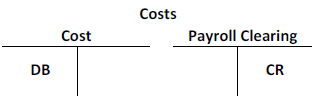
Billable Material Fixed Fee
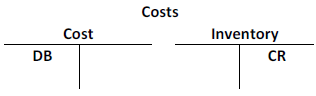
NOTE: When posting a Material Return the opposite transactions will be generated for the accounts listed above.
Billable Expense and Other Fixed Fee
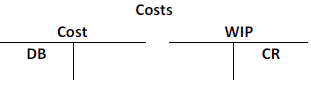
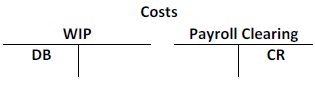
If the transaction/time ticket relates to either an administrative or non-billable project, phase, or task, the cost entry below will be created.
Non-Billable and Administrative Time
Non-Billable and Administrative Material
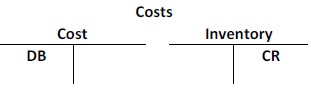
NOTE: When posting a Material Return the opposite transactions will be generated for the accounts listed above.
Non-Billable and Administrative Expense and Other
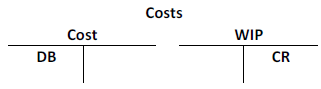
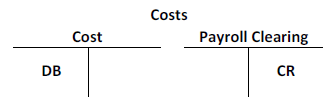
The General Ledger accounting for Transactions/Time Ticket entries in a Job Costing environment is as follows:
Job Cost Time
Job Cost Material
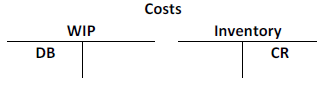
NOTE: When posting a Material Return the opposite transactions will be generated for the accounts listed above.
Job Cost Expense and Other
The cost of the transaction that is credited to the Payroll clearing account could be offset by an entry made when the Payroll is paid or accrued if so desired. The balance in the Payroll clearing account would represent the variance between the standard costs used in time ticket entry and the actual Payroll cost.
This provides you with the ability to quickly evaluate the standard costs you are using for employees. Alternately, you could compare the balance in the Payroll clearing account to actual Payroll-related cost accounts to achieve the same goal.
It is important to note that if there is a timing difference between the entry of time tickets and the accrual of Payroll costs, an adjustment to the Payroll clearing account followed by a corresponding reversal in the following month will be necessary if financial statements are being issued.
When you post Project Costing transactions that are Job Cost and Billable Fixed Fee transactions, the Fixed Fee Billings Account will replace the Sales Account.
To post transactions, follow these steps:
- Complete Time Ticket Entry.
- Complete Transaction Entry.
- Print the Time Ticket Journal.
- Print the Transaction Journal.
- Select the Do the following, then check the box check box.
- Select the Post Time Tickets check box, if applicable, to post time ticket charges.
- Select the Post Transactions check box, if applicable, to post material and other transactions.
- Select the Transfer Transactions to Payroll check box, if applicable, to transfer information to the Payroll transactions file.
Note: This option appears only if you interface Project Costing with Payroll. - Select the Use Payroll Rate check box, if applicable, to use employee rates recorded in the Payroll Employee Information function to calculate labor costs.
Note: Clear this check box to use the rate costs you set up in the Setup and Maintenance Employee Rates function. Select this check box to use employee rates to offset overhead costs instead of using overhead allocation codes. For example, you might enter an employee rate (the rate at which you charge for an employee's time) of $10 in the Employee Rate function, but record your hourly rate for that employee in Payroll at $8, resulting in an extra $2 per hour that you use to offset overhead costs. When you select this check box, the system uses the employee rate recorded in Payroll to calculate costs, allowing you to record the difference from billing charges without using overhead allocation codes. - Select the batches to post.
Note: This option only appears if you elected to use batch processing in the Business Rules function. You can use the All button to select all batches to post or you can use the None button to deselect all batches from posting. - Enter comments for the post, if applicable, in the Comments field.
- Click a command button to
| Click | To |
| OK | Begin posting the transactions. |
| Activity | Display the Activity Log to view posting activity. |
| Reset | Set all fields to their default values. |